
When we try to run or install a program on our windows 7 or Vista, windows pop ups an “User Account Control” (UAC) notification which contains a security message asking something to do. If the computer knows the publisher of the program then the message should be “Do you want to allow the following program from an unknown publisher to make changes to this computer?” and if the publisher is unknown, the message should be “Do you want to allow the following program to make changes to this computer?”.
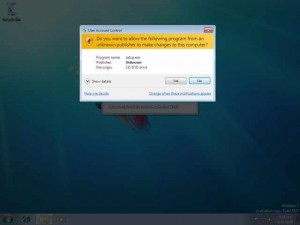
Actually User Account Control (UAC) notifies(warns) you before any changes are made to your computer system that require administrator-level permission. It’s a great feature on windows 7 or vista to help your computer from not being infected by potentially unwanted programs or malwares. The default UAC setting always notifies you when programs try to make changes to your computer, but you can control how often you will be notified by UAC by adjusting the settings. Or you can completely turn it off or disable it.
Warning: Disabling UAC notification, you will send your computer to the hell of viruses and hackers. Don’t think your anti-virus or security tool will always protect you.
How to Disable UAC Notification on Windows Vista or 7
To bring out UAC control, Open Up user accounts by clicking the windows Start button > Control Panel > User Accounts and Family Safety (or clicking User Accounts, if you are connected to a network domain), and then clicking User Accounts.
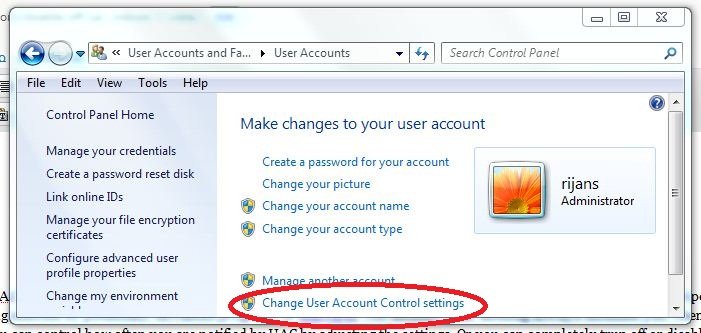
Now click User Account Control settings. If you are prompted for an administrator password or confirmation, type the password or provide confirmation.
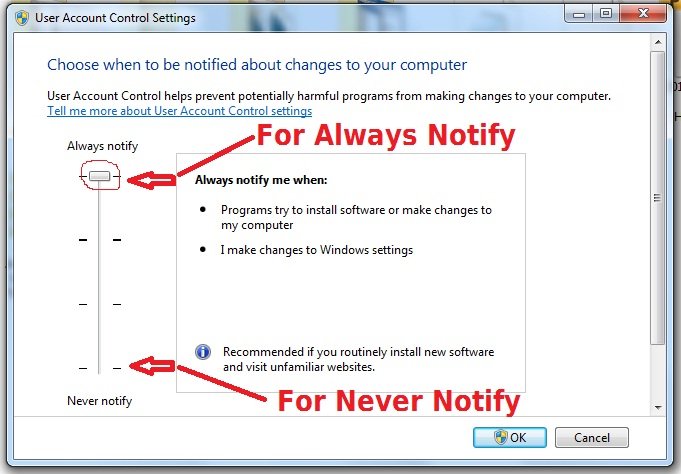 Now in UAC setting box Drag the slider bar where you want to set the notification level. If you want to never notify then simply slide the slider at the bottom. Then click OK. In future if you want to switch on it, simply move the slider to up.
As a security concern I never recommend you to do it. But this tutorial is for “How to do it”.

Author: Jaber Al Nahian
Jaber is a Programmer and Tech Enthusiast Geek from Dhaka, Bangladesh. He is the founder and Chief-Editor of TechGainer. While he is away from his keyboard, either he's fishing or messing with wildlife. In case, you can contact him at rijans[at]techgainer[dot]com.